Operations
The Operations tab is the command center of the BotCity Orchestrator for automation managers.
Its goal is to provide complete visibility of the operation across two time frames: what is happening now and what happened in the past — all on a single screen, without needing to navigate between separate technical menus.
Live Operation
Data window: last 60 minutes
The Live Operation block shows the current state of the operation. Data reflects exclusively the last 60-minute interval and does not appear in the historical block.

Summary Cards
| Card | What it shows |
|---|---|
| Automations | Total automations with an active schedule. The "With schedule →" link navigates to the automations list. |
| Schedule | Number of schedules planned for today. The "Schedules today →" link navigates to the schedules list. |
| Task processing | Three task counters: In queue (waiting for execution), Running (currently running), and Timeout (exceeded time limit). |
| Status Runners | Total runners in the workspace with a visual status bar: online runners (green) and offline runners (red). |
Task Queue
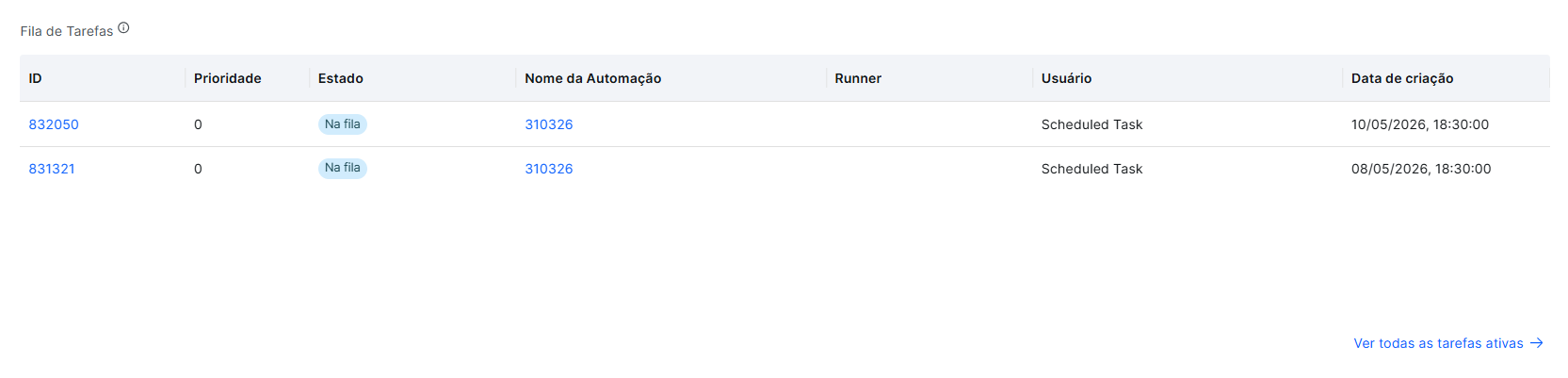
The Task Queue table lists tasks currently running or in queue, with the following columns:
- ID — task identifier, clickable to access the task details.
- Priority — numeric priority level of the task.
- State — current status:
In queueorRunning. - Automation Name — name of the linked automation, clickable to access the automation details.
- Runner — the runner processing the task, clickable to access the runner details.
- User — user who triggered the task.
- Creation date — task creation date and time.
The "Running Tasks →" link at the bottom of the table navigates to the full view of running tasks.
Historical Overview
Data window: period prior to the last 60 minutes, configurable by filter
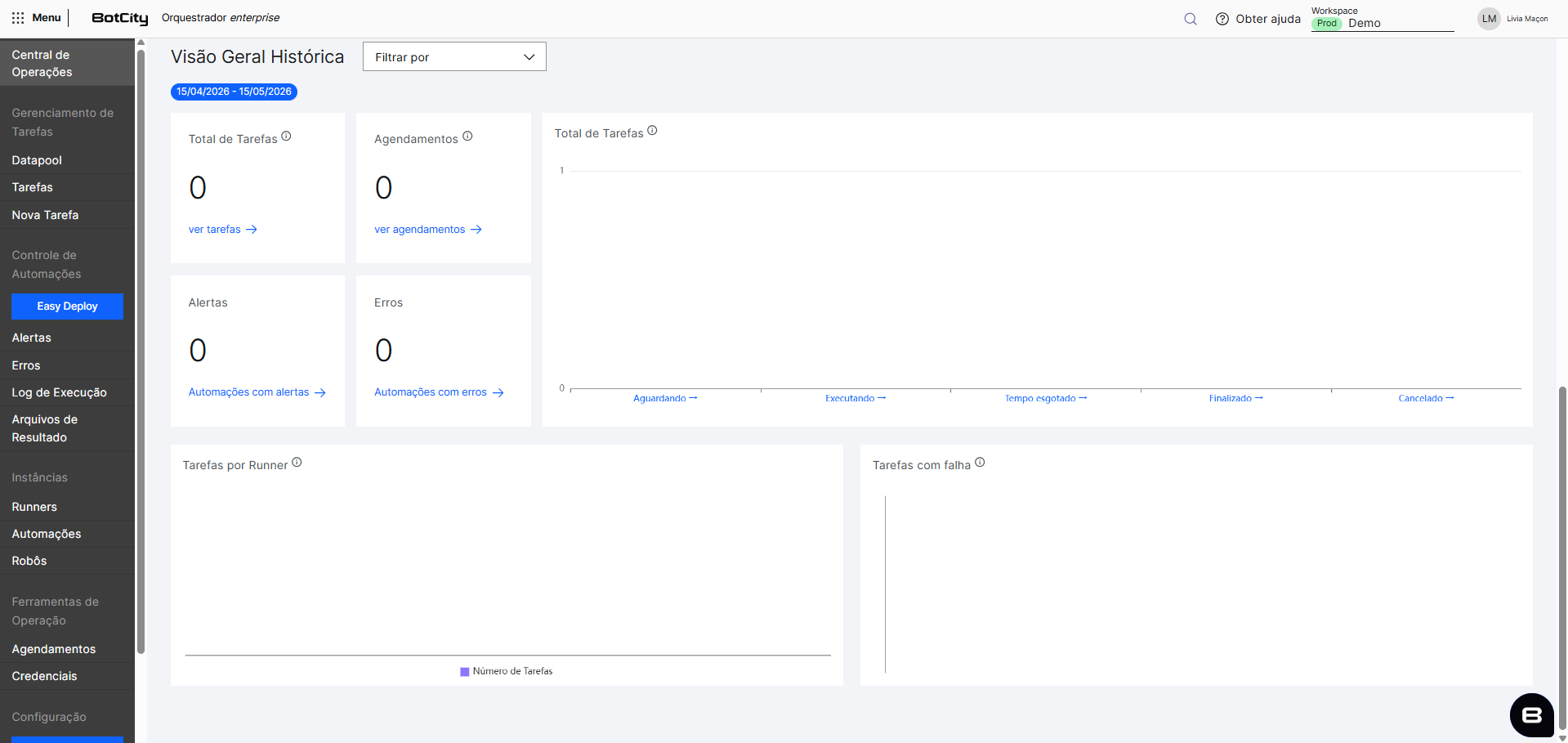
The Historical Overview block shows the consolidated operation over a past period. The period filter is located in the block header and never includes the last 60 minutes, as that data belongs to Live Operation.
Data separation
The separation between Live Operation and Historical Overview ensures there is no ambiguity in the data — especially for tasks that started recently and are still running.
Available Filters
- Today — current day only (excluding the last 60 min)
- 7 days — default when opening the screen
- 15 days
- 30 days
- Last year
- Custom — range selector with calendar (start date → end date)
When the Custom filter is active, the selected range appears as a highlighted tag (e.g., 02/18/2026 - 02/23/2026) with an option to clear the filter.
Summary Cards
| Card | What it shows |
|---|---|
| Total Tasks | Total tasks in the selected period. The "see tasks →" link navigates to the filtered listing. |
| Executed Schedules | Total schedules executed in the period. The "see schedule →" link navigates to the listing. |
| Alerts | Number of automations with alerts in the period. The "Automations with alerts →" link navigates to the filtered listing. |
| Errors | Number of automations with errors in the period. The "Automations with errors →" link navigates to the filtered listing. |
Tasks Totals
Bar chart that distributes the tasks in the selected period by final status:
- Finished — tasks completed successfully.
- Partially Completed — tasks partially completed.
- Failed — tasks that failed.
- Canceled — canceled tasks.
Each bar is clickable and navigates to the listing filtered by the respective status.
Tasks by Runner
Displays the volume of tasks per runner over the selected period. Shows up to 5 runners simultaneously, each identified by a distinct color. Below the axis, there are direct access links for each runner.
Visualization variation
In the 7 days view, the chart is a line chart with temporal evolution. With the Custom filter and a short interval, the chart changes to grouped bars per runner.
Failed Tasks
Ranking of automations with the most failures in the selected period. Displays automations with the highest number of failed tasks, sorted in descending order. Each automation has a clickable link to access the details.