Tasks
The Tasks resource in the BotCity Orchestrator side menu is where you can manage all tasks created for your workspace's automation processes.
Task queue view
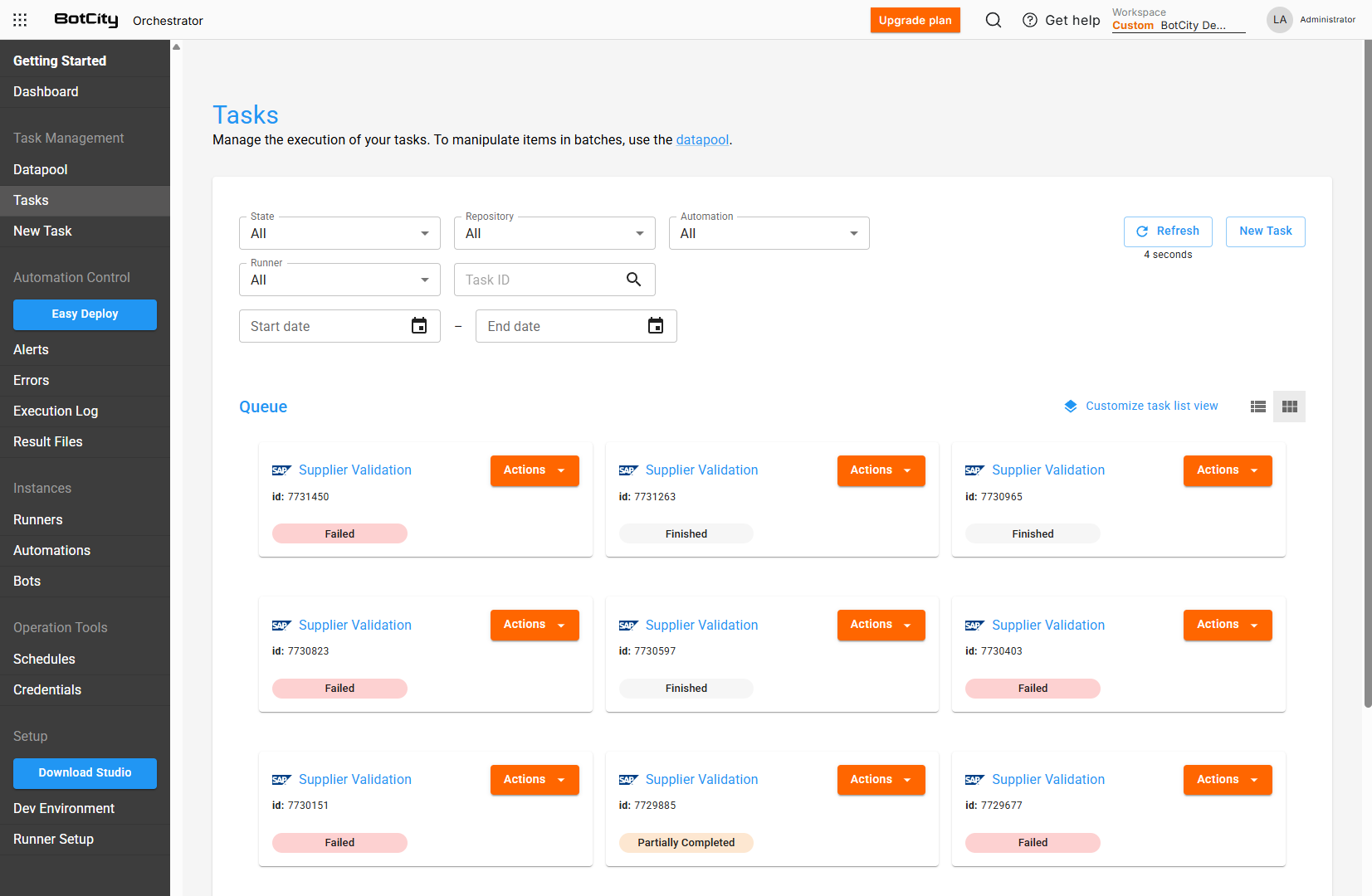
You can organize the task queue view in two different formats:
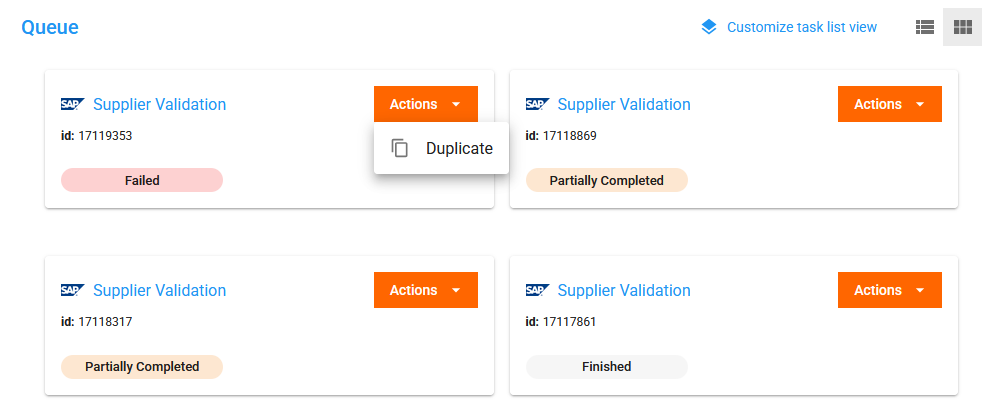
Cards
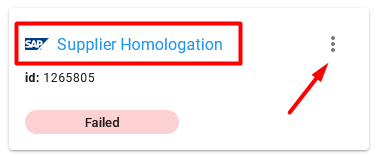
In this format, each task is displayed in an individual card, showing essential information such as:
- Automation name
- Task ID
- Current state
- Available actions button
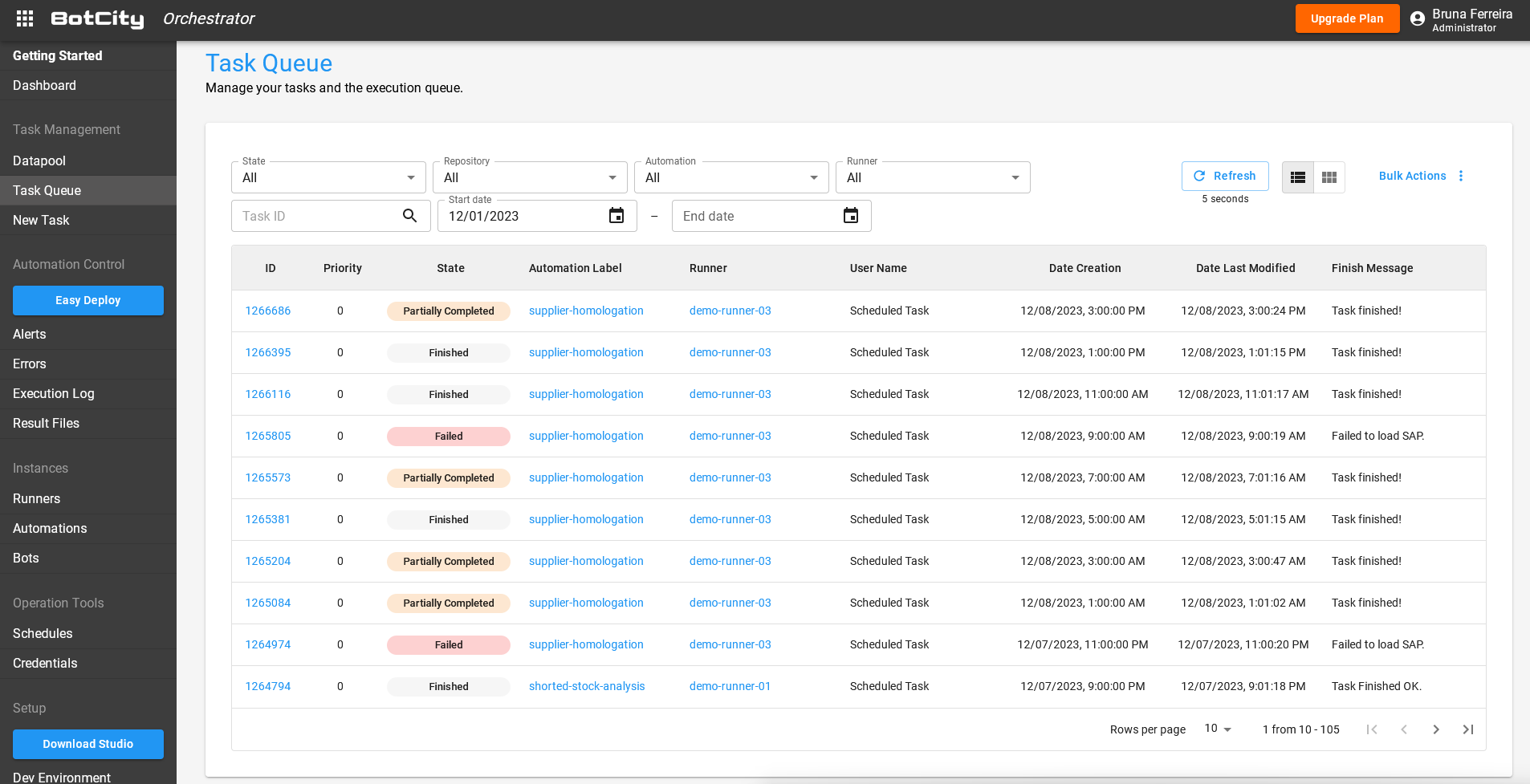
List
In this format, tasks are displayed in a table, providing a more detailed and organized view of the tasks.
You can see the following columns:
- ID: Unique identifier of the task.
- Priority: Priority level assigned to the task (
0to10). - State: Current state of the task.
- Last Update: Date and time of the task's last update.
- Automation Name: Name of the automation process associated with the task.
- Runner | Status: Name of the Runner responsible for executing the task and its current status.
- User Name: Name of the user who created the task.
- Date Creation: Date and time the task was created.
- Processed Items: Number of items successfully processed by the task.
- Failed Items: Number of items that failed during processing by the task.
- Finish Message: Message associated with the task's completion.
- Report Items: Incomplete item report warning.
- Repository: Name of the repository where the automation is stored.
- Actions Button: Available actions for the task.
Customize the task view
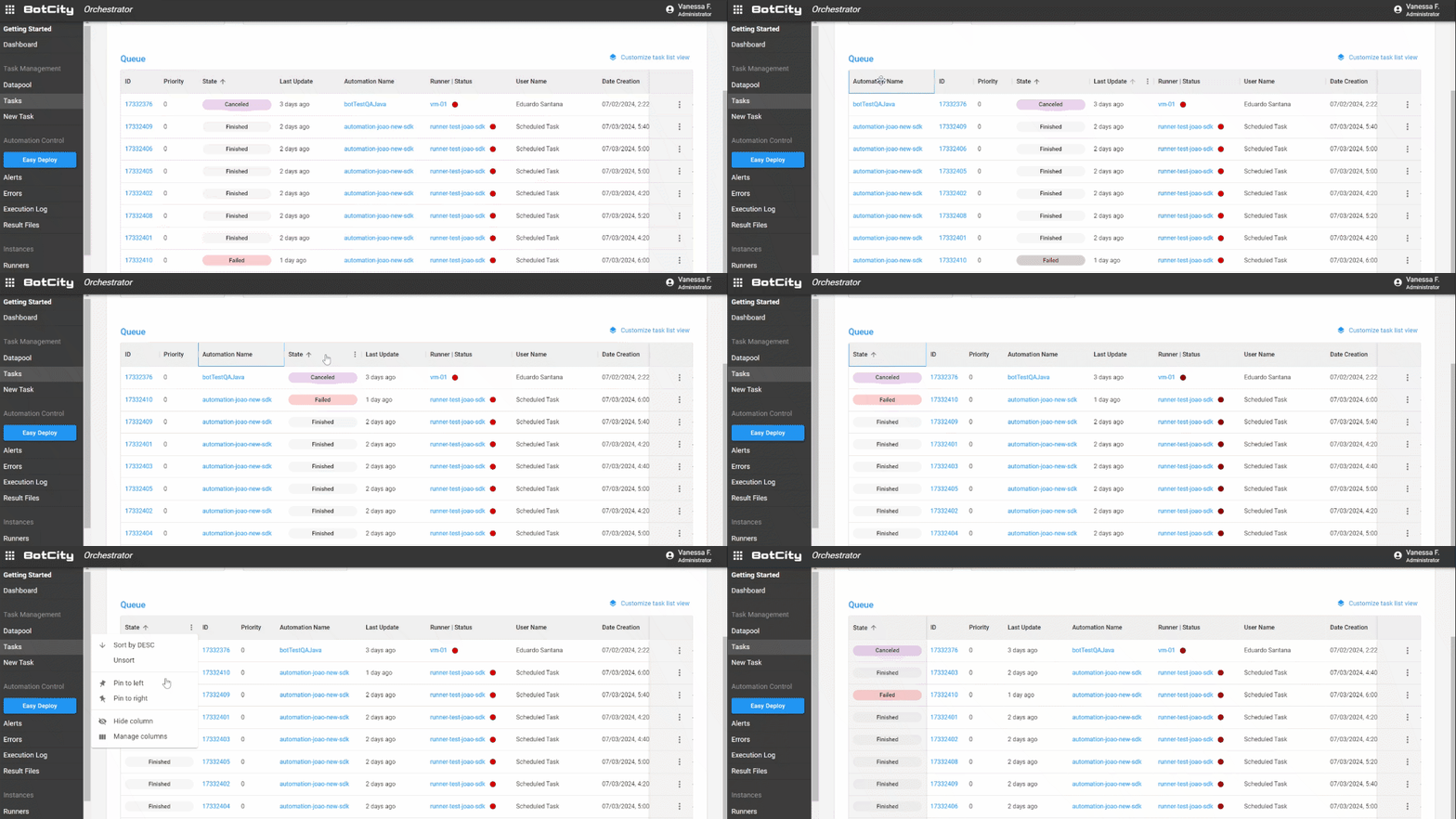
When the list format is selected, you can also customize the task view table according to your preferences.
To customize the view:
- Select the options menu of the desired column.
- Choose the pin (📌) to pin the column to the table.
This way, all selected columns will be saved as the default configuration for the task queue view.
Tip
Through the Customize the task list view button you can find a summary of how to configure the view.

Search and filters
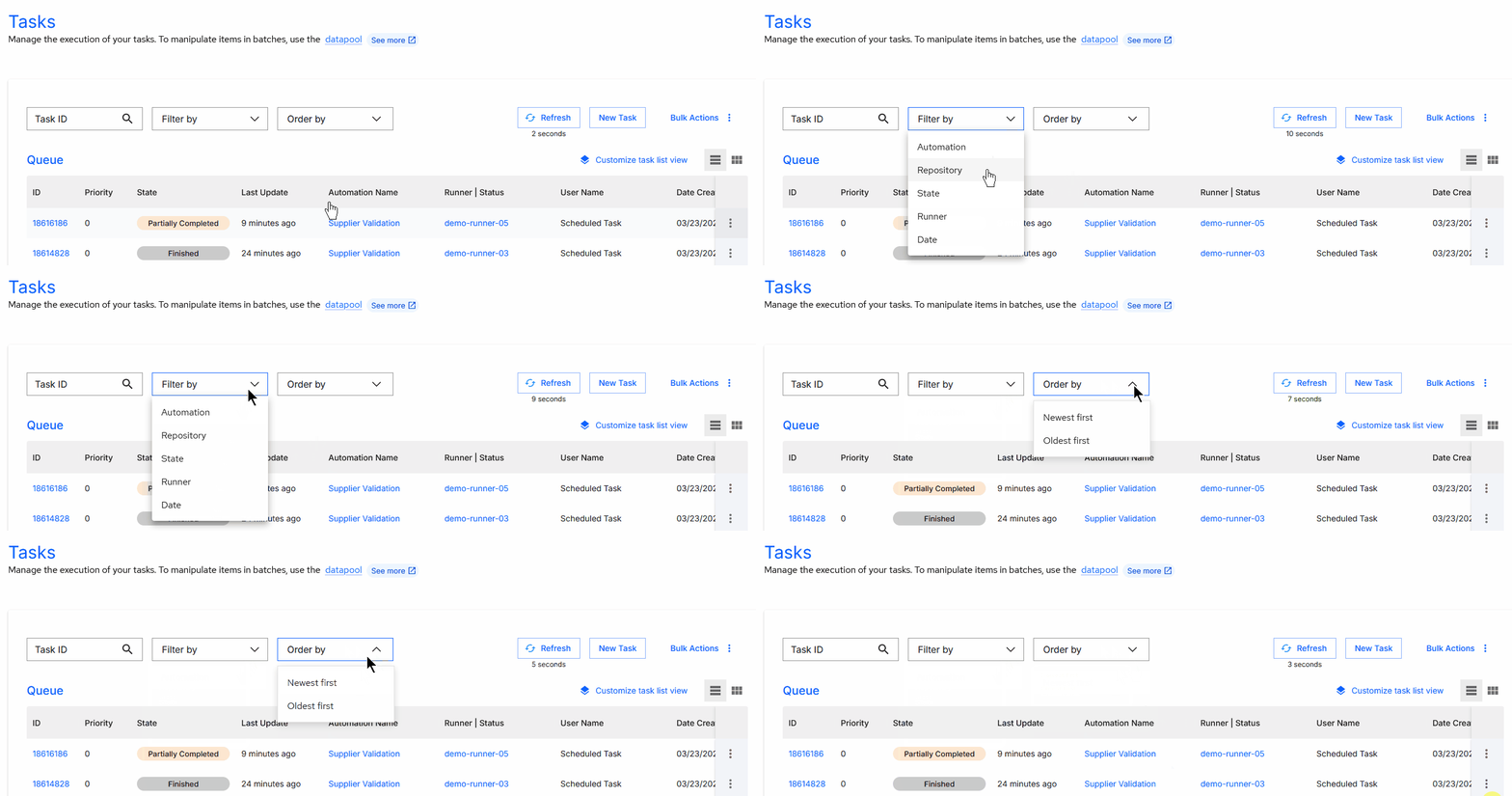
You can combine multiple filters at the top of the task queue to search according to your needs.
Search by:
- Task ID: Search by the task's unique ID.
Available filters:
- Automation: Select one or more automations.
- Repository: Select a specific repository.
- State: Select the current state of the task (
In Queue,Running,Finished,Failed,Partially finished,CancelledouTimeout). - Runner: Select a specific Runner.
- Period: Select a date or period to filter by.
Sorting:
- Newest first
- Oldest first
Warnings
Some warning indicators may appear in the task queue. These warnings can help you better manage executions.
-
Offline Runners
If there are tasks in the queue associated with Runners that are offline, a warning will be displayed for you to review your allocated Runners. This warning includes a direct link to the platform's
Runnersmenu, where you can manage your workspace's Runners.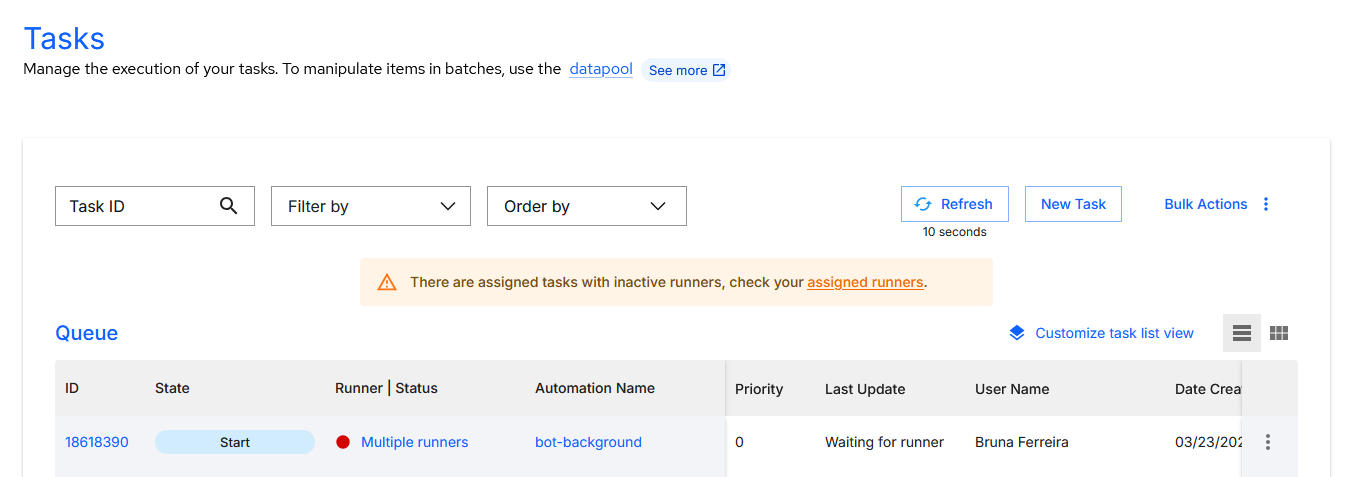
-
Unreported items
If a task has been completed without reporting the total number of processed items, a warning will be displayed in the
Report Itemscolumn. This warning serves to inform that the task did not report the expected data. It is important that the data be reported during task finalization.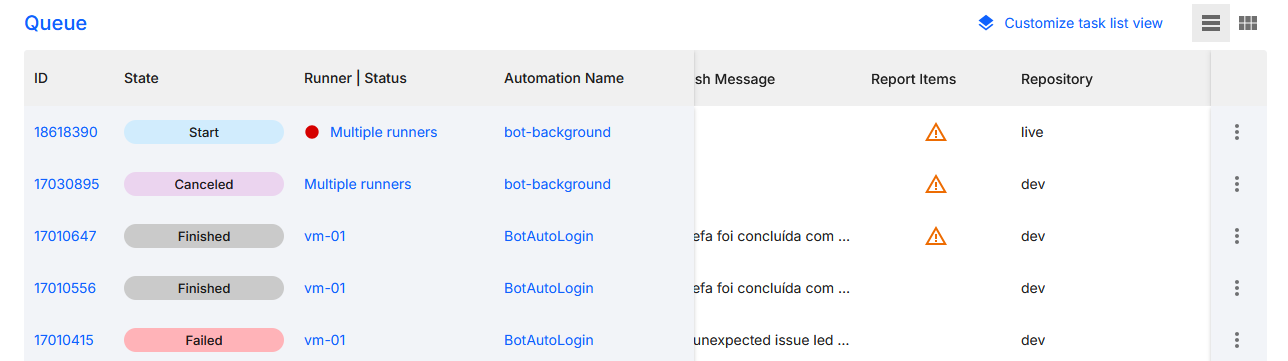
Task information
Each task has detailed information that can be accessed to better understand its state, parameters used, completion messages, and other relevant data.
State
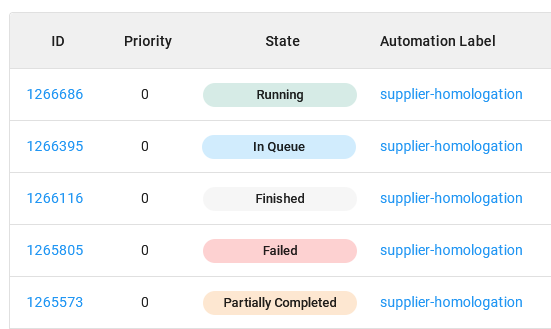
The state of a task indicates which phase of the lifecycle it is in. A task can have multiple states as the automation process progresses.
The possible states are:
In Queue: Indicates that the task is in the execution queue, waiting to be processed by one of the Runners linked to the automation process.
Running: The task has been directed to an available Runner and is being executed.
Finished: The task's processing has been completed successfully.
Failed: The task's processing has been completed with a failure.
Partially Completed: The task's processing was completed partially. For example, consider a process where some items were processed successfully and others with failure in a single task.
Canceled: The task's execution was canceled before it was pulled for execution.
Timeout: The task took longer than expected to be completed. See how to configure it in Automations.
Maestro SDK
For more information on how to implement the task finalization functionality in code, see the Maestro SDK Tasks section.
Detailed information
To access the detailed information of a specific task, you have two options depending on the view format chosen.
- Cards: Click on the automation name inside the task card.
- List: Click on the task ID in the table, or in the task's action menu, click
Info.
When accessing the details of a task, you will find several sections with important information about the task's execution.
At the top of the page you will find:
- Task ID: Unique identifier of the task.
- Actions Button: Available actions for the task.
- Navigation tabs: Allows you to navigate between the
Information,Errors,AlertsandResult Filessections.
Information Tab
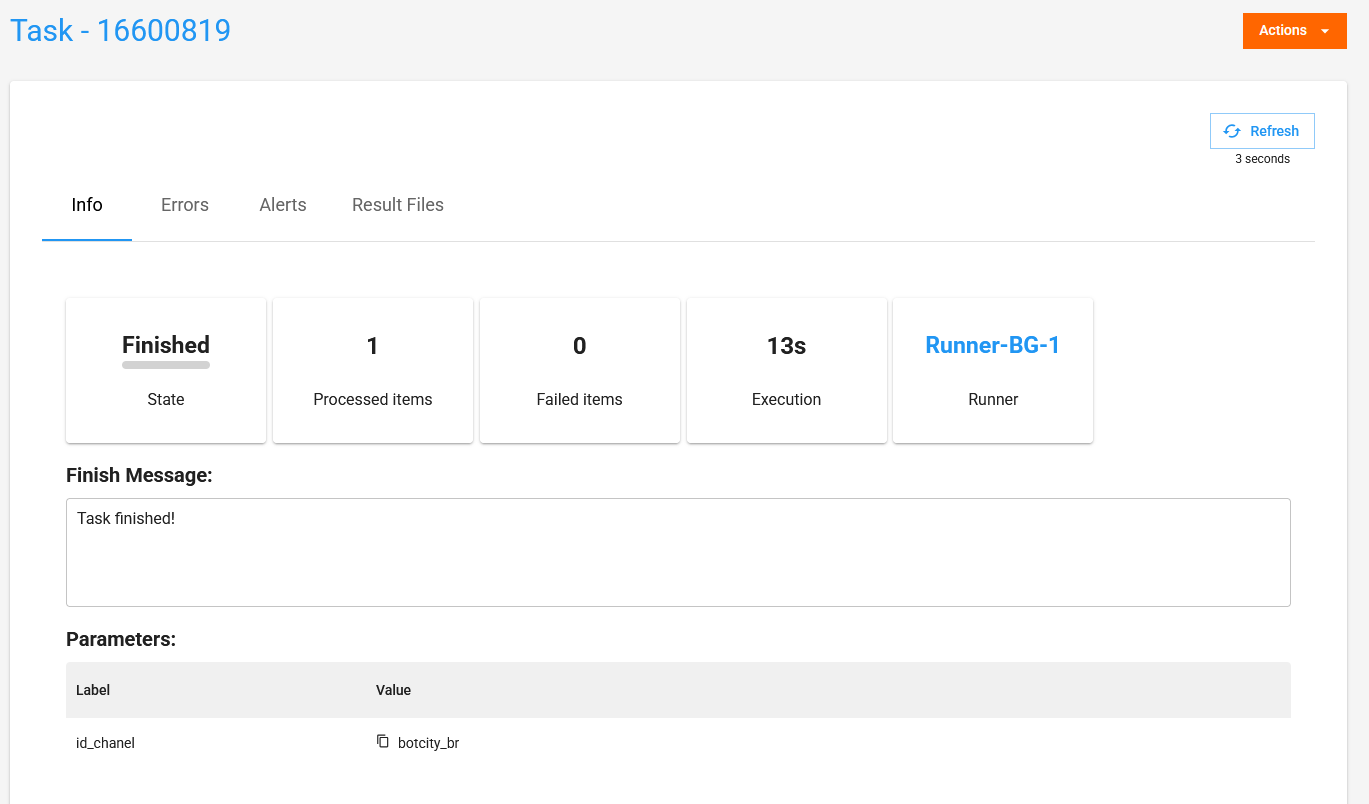
In the Information tab, you will find several sections with details about the task.
Summary cards:
- State: Shows the task's current state.
- Processed Items: Number of items successfully processed by the task.
- Failed Items: Number of items processed with failure by the task.
- Execution: The time spent executing the task, from the start of execution to completion.
- Runner: The Runner responsible for executing the task.
- Finish Message: The message associated with the task's completion.
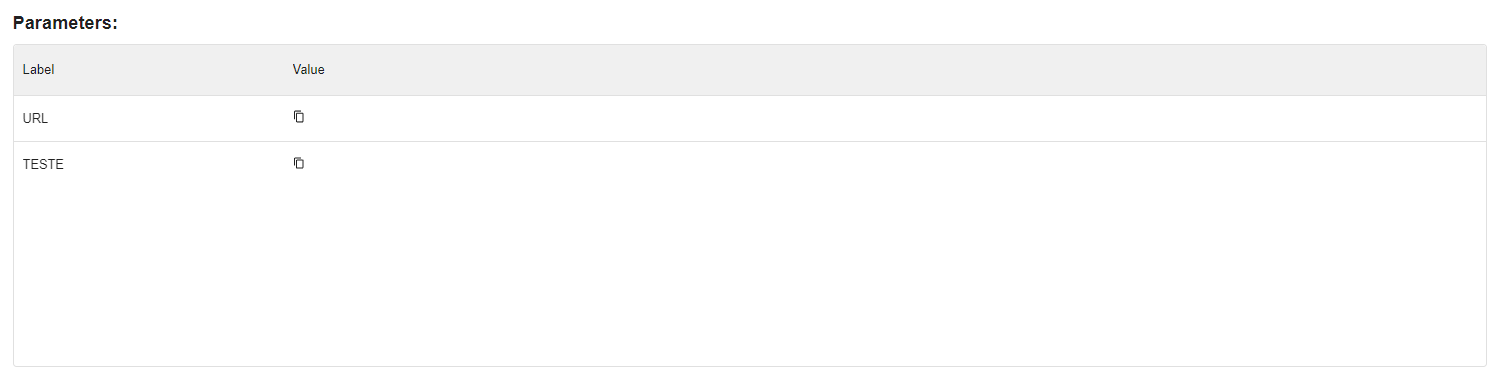
- Parameters: The input parameters and their values used in the task's execution.
Reported data
The data reported in the Processed Items and Failed Items cards are also used to compose BotCity Insights data reports. Therefore, it is important that the automation code correctly reports all processed data. See the Maestro SDK Tasks section for how to report data.
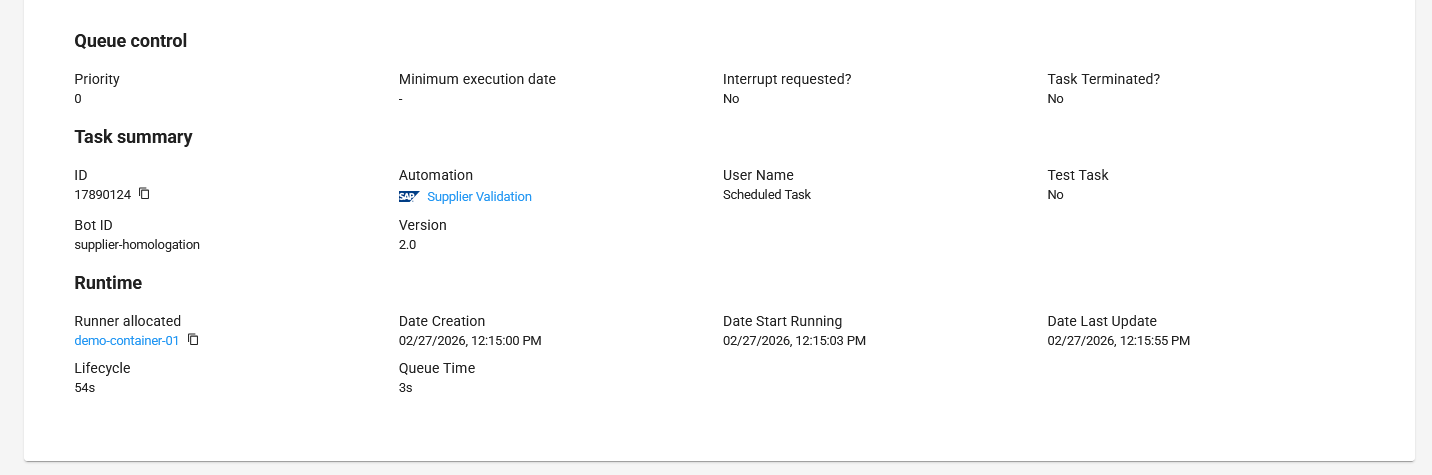
Control information:
- Queue Control: Task queue control information:
- Priority: Priority level assigned to this task (
0to10). - Minimum Execution Date: Minimum date and time defined for this task's execution.
- Interrupt Requested?: Indicates whether a stop was requested during the task's execution (
YesorNo). - Task Terminated?: Indicates whether the task was forcibly terminated (
YesorNo).
- Priority: Priority level assigned to this task (
- Task Summary: Task information:
- ID: Unique identifier of the task.
- Automation: Name of the automation associated with the task.
- User Name: Name of the user who created the task.
- Test Task: Indicates whether this is a test task (
YesorNo). - Bot ID: Unique identifier of the robot associated with the task.
- Version: Version of the robot used in the task.
- Runtime: Execution information:
- Runner Allocated: Name of the Runner responsible for executing the task.
- Date Creation: Date and time the task was created.
- Date Start Running: Date and time the task began execution.
- Date Last Update: Date and time the task was last updated.
- Lifecycle: Total time from task creation to completion.
- Queue Time: Total time the task remained in the execution queue, from the moment of creation to the start of processing.
Errors Tab
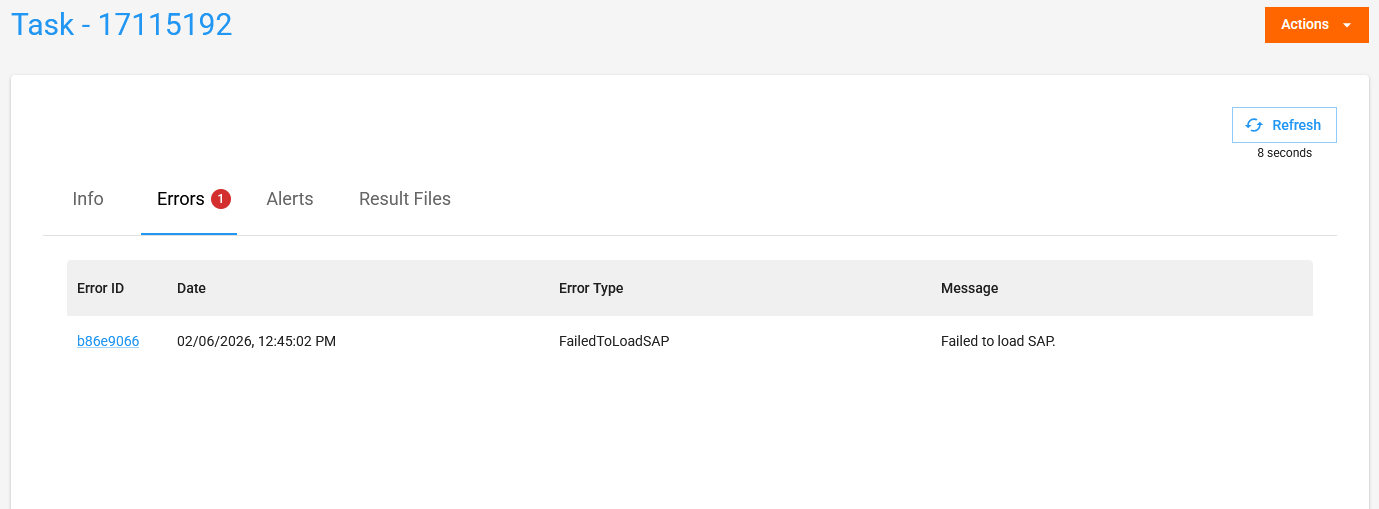
In the Errors tab, you can view all errors that occurred during the task's execution.
Errors are displayed in a table with the following columns:
- Error ID: Unique identifier of the error with a link to view more details about the error.
- Date: Date and time the error occurred.
- Error Type: Type of the error that occurred.
- Message: Description of the error that occurred.
Alerts Tab
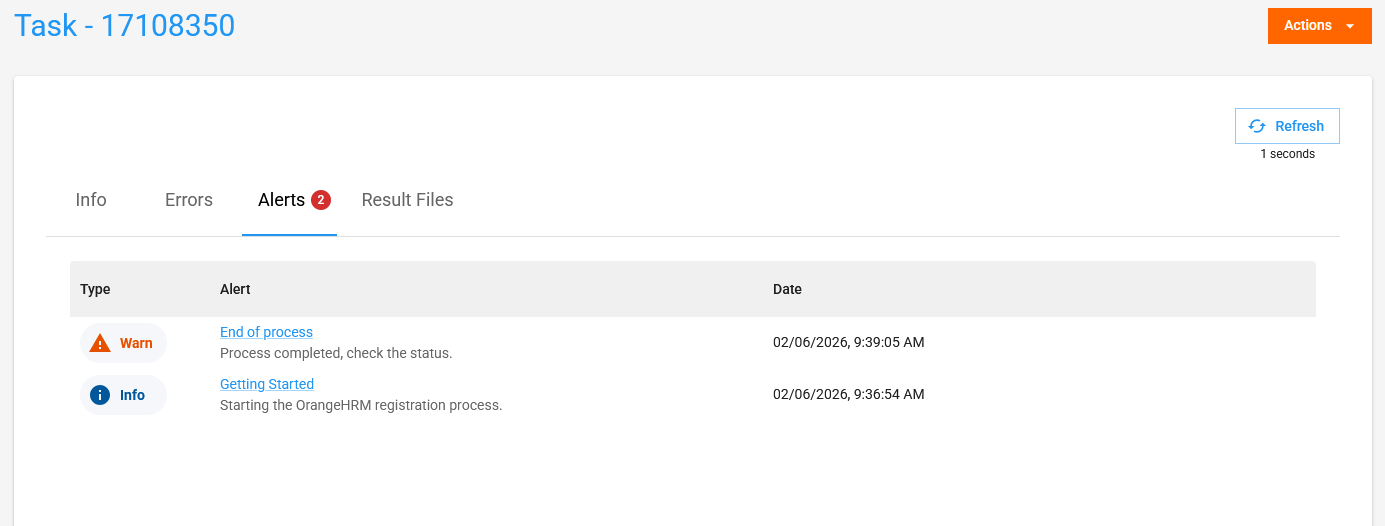
In the Alerts tab, you can view all alerts emitted during the task's execution.
Alerts are displayed in a table with the following columns:
- Alert Type: Type of the alert emitted (
Information,WarningorError). - Alert: Title of the alert emitted, with a link to view more details about the alert and a custom description.
- Date: Date and time the alert was emitted.
Result Files Tab
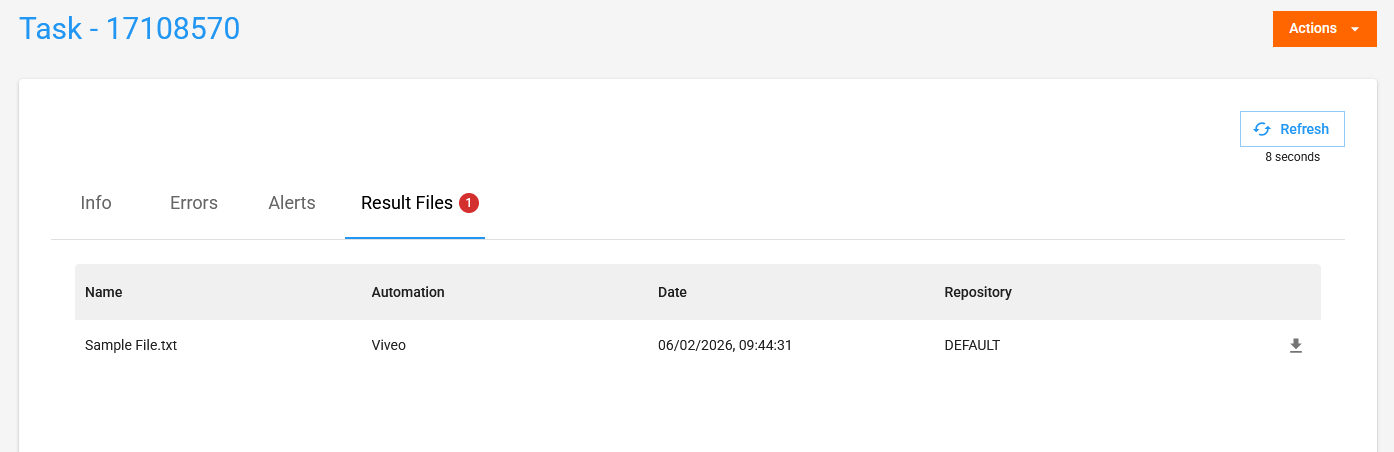
In the Result Files tab, you can view all files sent during the task's execution.
Files are displayed in a table with the following columns:
- Name: Name of the uploaded file.
- Automation: Name of the automation that generated the file.
- Date: Date and time the file was uploaded.
- Repository: Name of the repository where the automation is stored.
- Download button: Button to download the file.
Attention
Errors, alerts and result files are sent during task execution time, therefore this information can be accessed before the task is completed.
Finish task message
The completion message displayed in the task must be defined in the automation code and can be customized according to the process's needs.
However, there are default messages displayed in certain contexts.
-
When the task completion has not been defined in the code:
Check your automation code for status indicators and messages to report the finished task status. -
When the execution environment has not been prepared correctly:
The execution environment was not prepared correctly. Check the logs for more details.
Set the completion message
See how to set a completion message in code using the Maestro SDK or through the BotCity Orchestrator API.

Task parameters
The parameters displayed in a task are passed during task creation and are used during execution. Parameters allow you to customize the automation's behavior based on the provided values, bringing flexibility for different use cases.
By default, an automation has no defined parameters, but it is possible to configure custom parameters for each automation process.
Set parameters for the automation
See how to create custom parameters for the automation in the Automations Documentation section.
Create tasks with parameters
After parameters have been defined in the automation, you can create tasks with those parameters using different methods:
- New Task resource in BotCity through the Orchestrator interface.
- Task creation command in BotCity CLI via command line.
- BotCity Maestro SDK via code.
- BotCity Orchestrator API through the API.
Task actions
Each task has a set of actions that can be performed depending on the task's current state.
The available actions can be accessed through the actions button on the task information screen. They are also accessible in the cards or list view of the task queue.
The available actions are:
- Delete: Deletes a task that is waiting in the queue.
- Request stop: Requests the interruption of a task that is running.
- Force to stop: Ends the task by forcibly terminating the execution.
- Restart: Restarts a test task.
- Cancel: Cancels the execution of a task that is waiting.
- Duplicate: Re-queues a cancelled task or one that has already been executed, with the same assignments.
Request stop vs Force to stop
- To request a task stop, the automation code must implement periodic checking of the stop status using the Maestro SDK.
- The force stop action immediately interrupts the task, forcibly ending the process in progress — in this case, without requiring any implementation in the automation code.
Attention
- Tasks that are running only have
Request stopandForce to stopactions available. - Tasks waiting in the queue only have
DeleteandCancelactions available. - Only tasks defined as tests can perform the
Restartaction. - Completed or cancelled tasks only have the
Duplicateaction available.