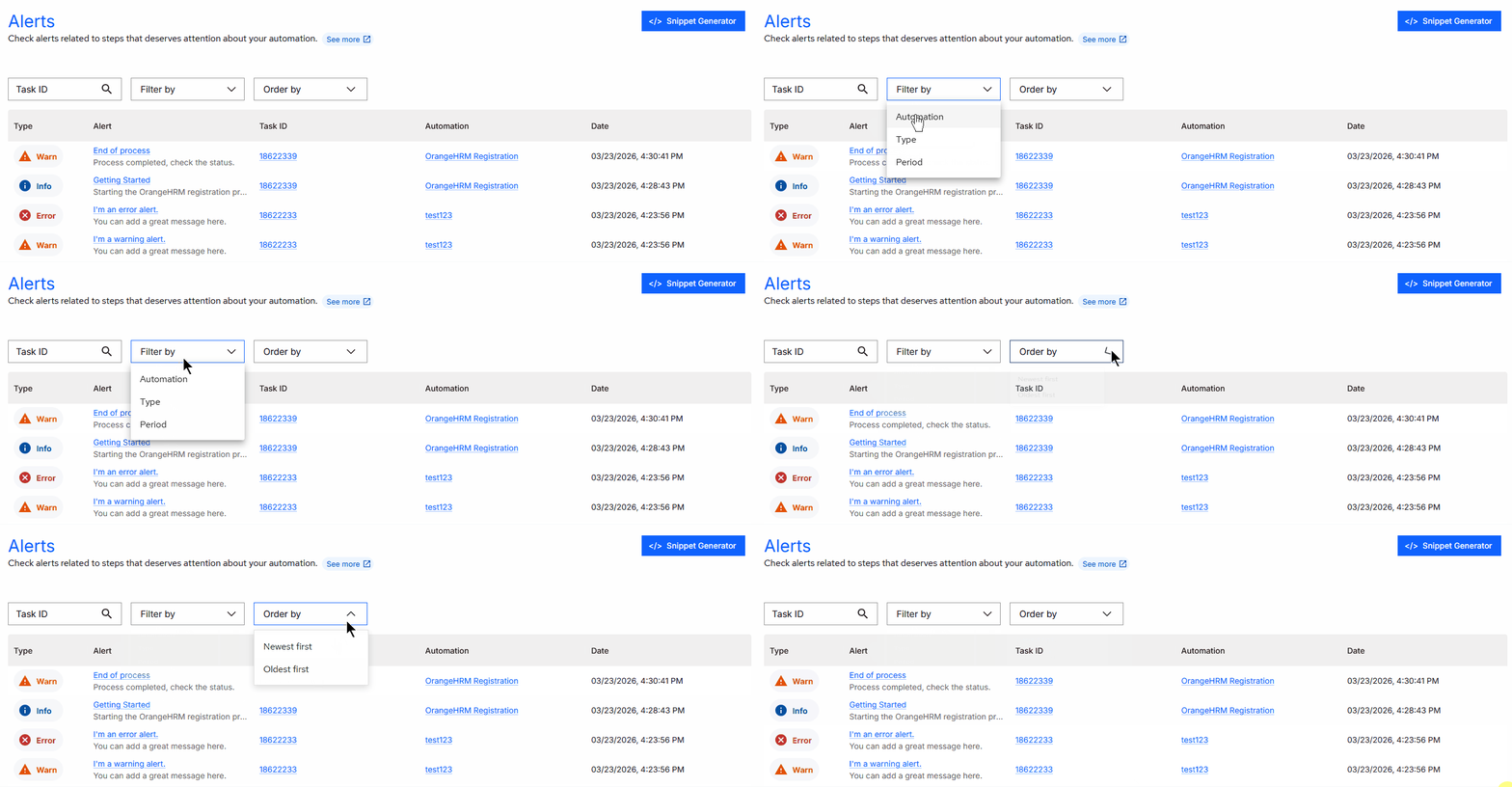
Alerts
When you have multiple automations running at the same time, visualizing the entire operation can be a challenge.
Alerts are used to provide short messages that can describe a specific aspect of a given automation.
Alerts can be assigned to users for monitoring more critical processes, notifying them whenever an alert is sent.
Snippet Generator
Alert manipulation actions can be performed directly on the BotCity Orchestrator platform or via code, using the BotCity Maestro SDK or the BotCity Orchestrator API.
Explore the Snippet Generator button to get code examples that facilitate alert manipulations using the BotCity Maestro SDK. Generate code snippets for the following actions: Informational alert, Warning alert, Error alert and Messages via code.
The generated snippets are available in the Python, Java, JavaScript and TypeScript languages.

Alert types
There are three types of alerts available in the BotCity Orchestrator:
 Information Alert: Can be used at strategic points to generate important information for the process.
 Warning Alert: Can be used in more critical situations that require closer attention.
 Error Alert: Can be used when something does not go as expected.
Send alerts
Alerts are sent directly via code, making it possible to fire numerous alerts of different types within the same process.
These alerts are recorded in the BotCity Orchestrator, always linked to a specific task.
In addition to alerts sent directly on the platform, there are also messages. These can be used to send alerts via email to anyone, even if they are outside the BotCity Orchestrator workspace.
Maestro SDK
For more information on how to implement the alerts functionality in code, see the Alerts section of the Maestro SDK.
View alerts
There are two ways to view the alerts sent in the BotCity Orchestrator.
Alerts Menu
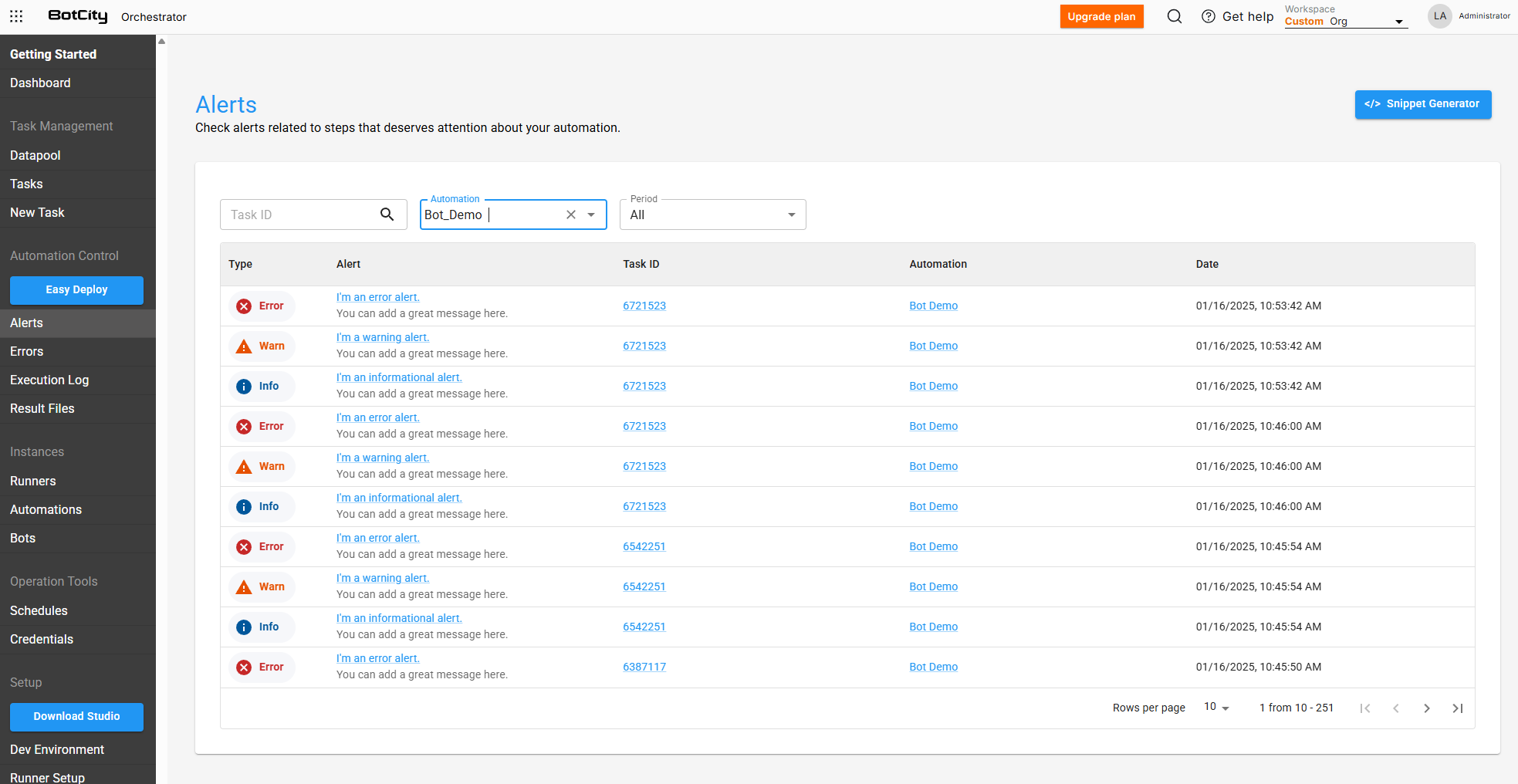
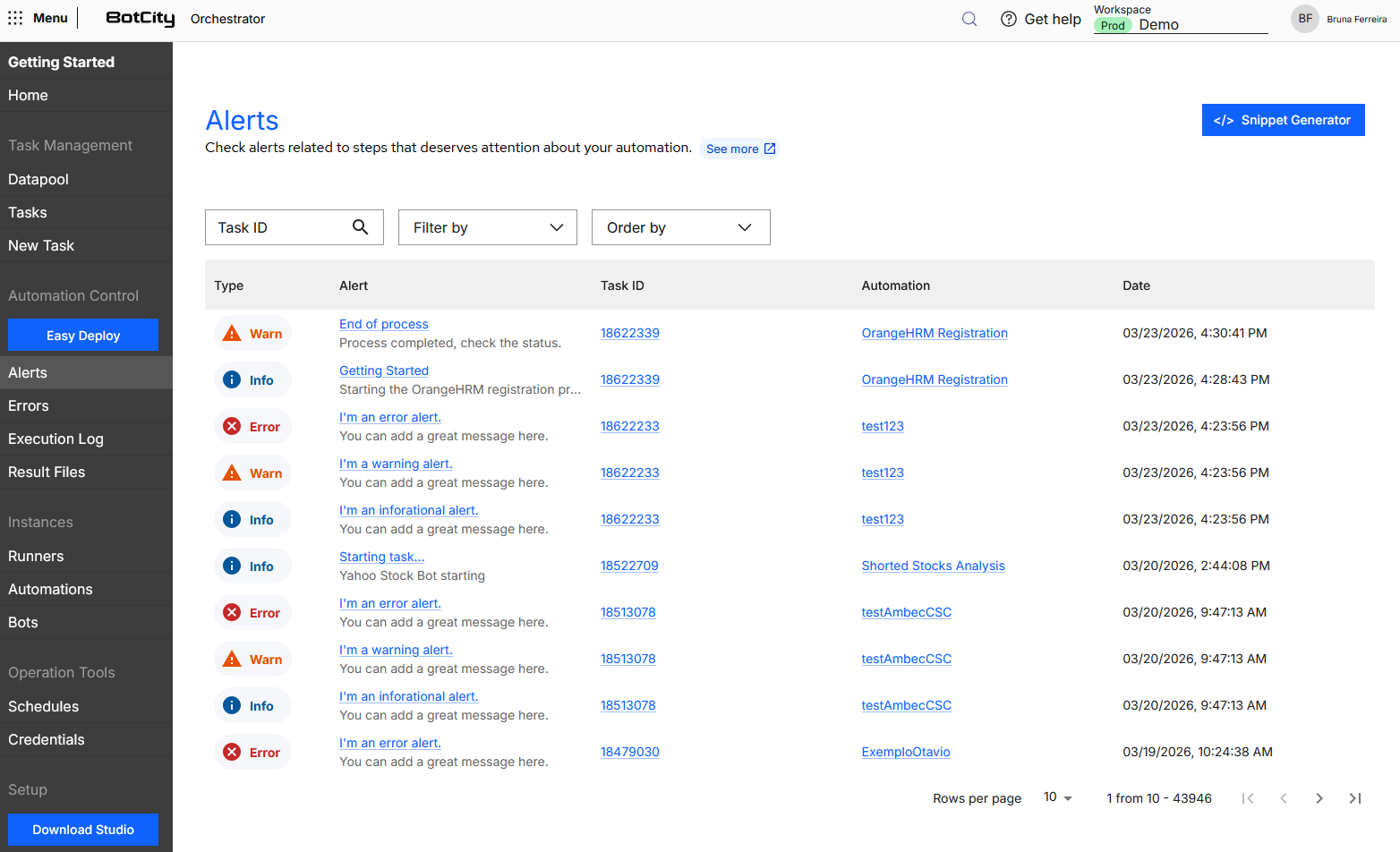
When accessing Alerts in the side menu, you will find all alerts sent in the Orchestrator in table format.
You will find the following columns:
- Type: Shows the alert type (
Information,WarningorError). - Alert: Title as a link to access alert details, with the customizable alert message below.
- Task ID: Identification number of the task that sent the alert, as a link to access task details.
- Automation: Name of the automation that sent the alert, as a link to access automation details.
- Date: Date and time the alert occurred.
Tasks Menu
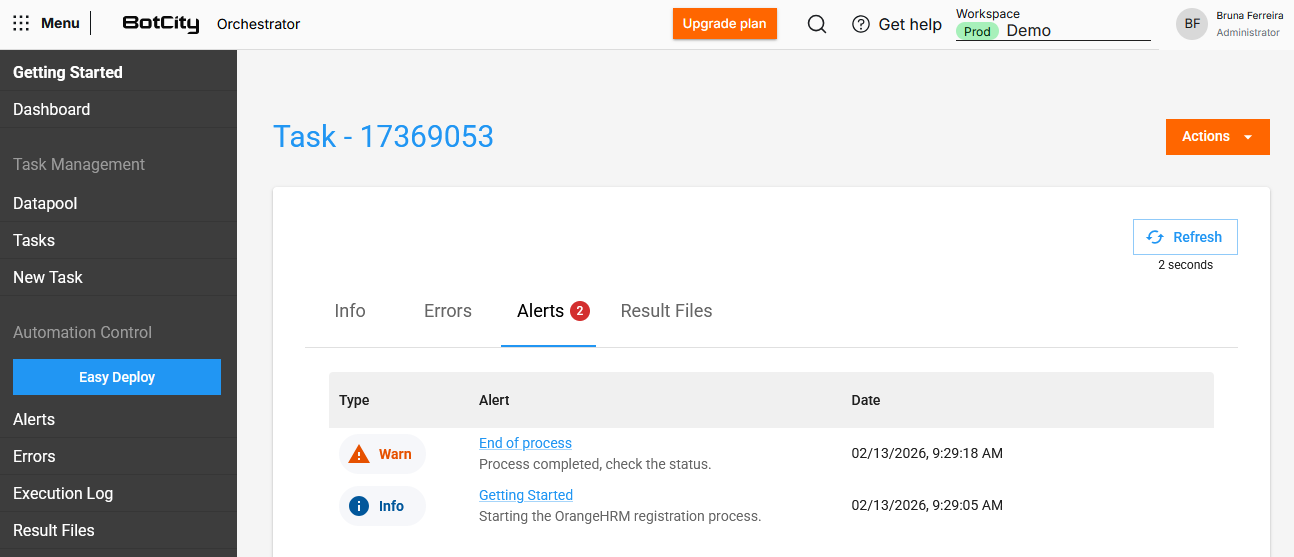
Alerts can also be accessed through the Tasks menu, by opening a task's details and navigating to the Alerts tab.
You will find the following columns:
- Alert type: Type of the generated alert (
Information,WarningorError). - Alert: Title as a link to access alert details, with the customizable alert message below.
- Date: Date and time the alert was generated.
Alert details
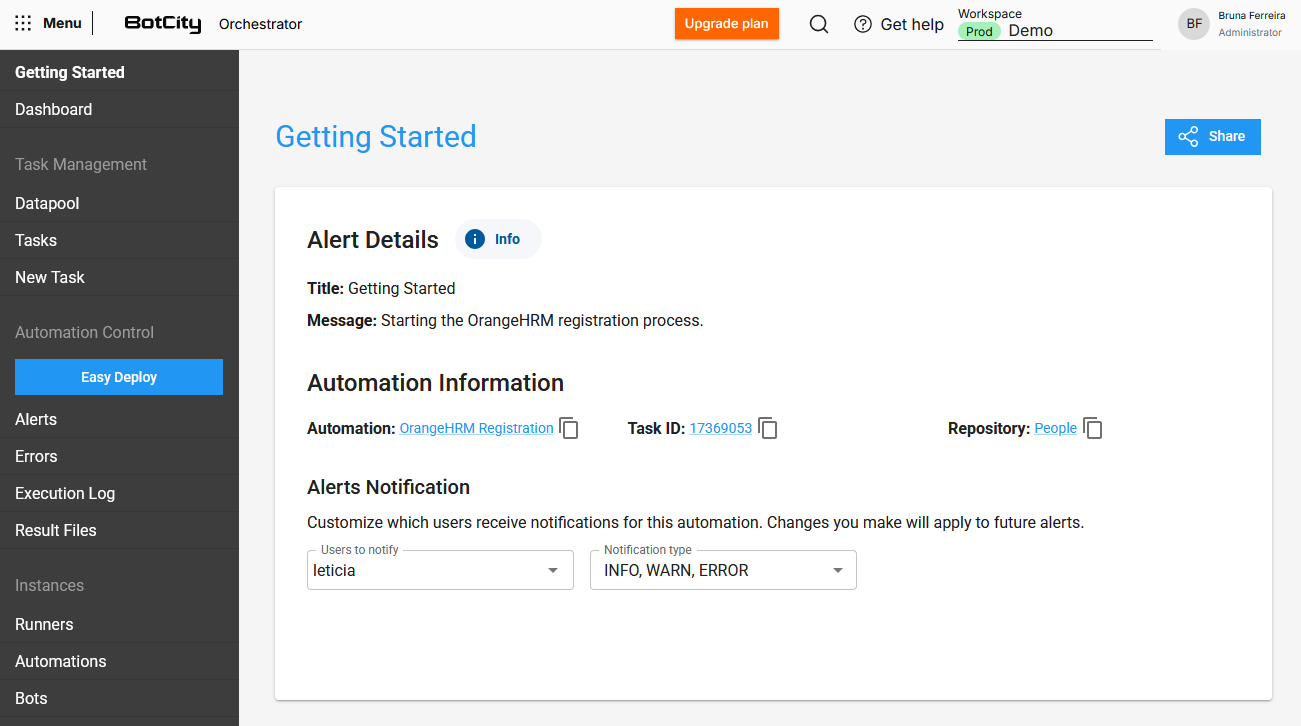
When accessing the details page of an alert, you will find the following information blocks:
- Type: Alert type with its corresponding icon.
- Alert Details: Customized title and message of the alert.
- Automation Information: Automation, Task ID and Repository.
- Alert Notifications: Fields to select:
- Users to notify: Select users to receive alerts via email.
- Notification type: Select which types of notifications should be sent to the selected users.
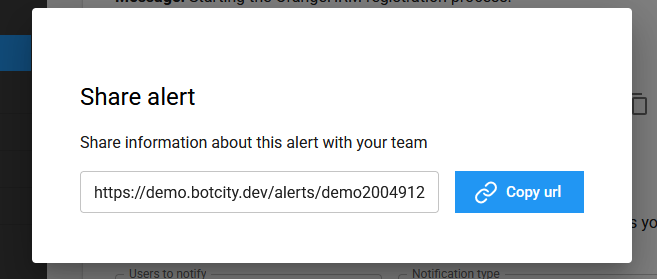
Share
You can easily share alerts using the share button in the upper right corner.
Search and filters
You can combine multiple filters to search in the Alerts menu according to your needs.
Search by:
- Task ID: Search by task identification.
Available filters:
- Automation: Select one or more automations.
- Type: Select a specific alert type.
- Period: Select a period (
1 day,1 week,15 days,1 month).
Sort order:
- Most recent first
- Oldest first